
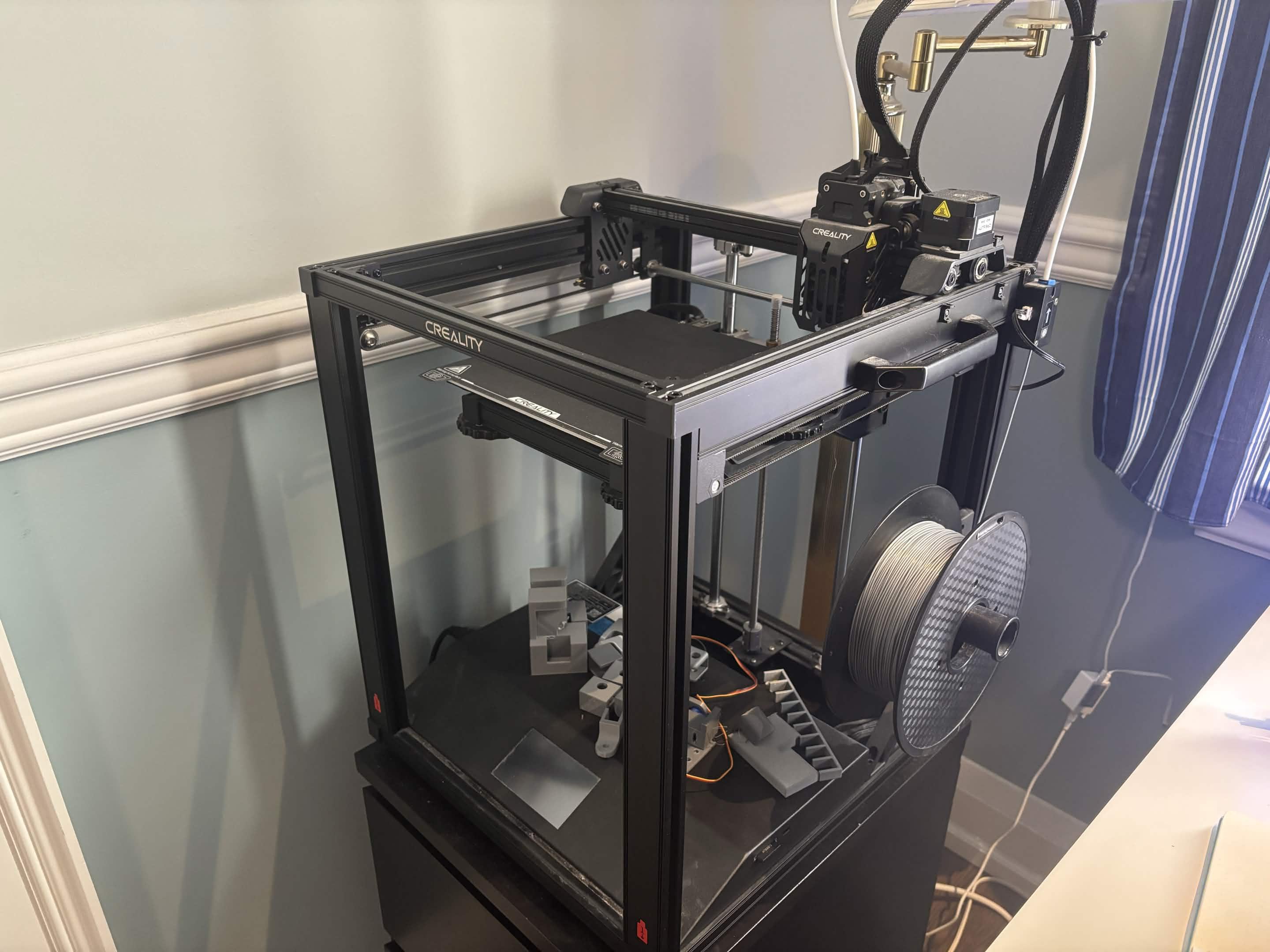
3D Printing Notes: Ender 5 S1 Bed Leveling & SD Card Troubleshooting
Why I'm Writing This
I constantly find myself forgetting the small but important steps involved in maintaining my 3D printer. Rather than searching through videos every time something goes wrong, I'm documenting the process here as a reference for my future self.
This guide covers:
- Re-leveling an Ender 5 S1
- Calibrating the Z-offset during a print
- Fixing SD cards stuck in read-only mode
Setting Up and Re-Leveling an Ender 5 S1
Reference Video: https://www.youtube.com/watch?v=MhX9aAkVFqI
Materials Needed
- Ender 5 S1 (assembled)
- A4 or standard letter paper
- Filament loaded (optional for test print)
Step 1: Reset Printer Settings
-
Power on the printer.
-
Open:
Settings → Advanced Settings → Reset Configuration -
Confirm the reset.
This ensures all calibration values start from factory defaults.
Step 2: Set the Leveling Method
Navigate to:
Settings
→ Leveling Method
Select the leveling mode recommended by the printer and return to the main menu.
Step 3: Home the Printer
Open the leveling screen and select:
Return to Zero
Wait for the printer to move the nozzle into its reference position.
Step 4: Set the Initial Nozzle Height
Place a sheet of paper directly beneath the nozzle.
Using the Z-offset controls, slowly lower the nozzle until the paper can still move but has slight resistance.
Correct Paper Feel
✅ Paper slides with light friction
❌ Paper moves freely with no resistance
❌ Paper is trapped and cannot move
Step 5: Manually Level the Four Corners
The printer will move to each corner one at a time.
For each corner:
- Place the paper beneath the nozzle.
- Adjust the leveling knob until the same slight drag is felt.
Knob Directions
- Clockwise → Lowers the bed
- Counterclockwise → Raises the bed
Check all four corners:
- Front Left
- Front Right
- Rear Right
- Rear Left
Step 6: Repeat Corner Checks
After adjusting all four corners, return to the first corner and check again.
Changing one corner affects the others, so continue making small corrections until:
- All corners feel identical
- Paper resistance is consistent across the bed
Step 7: Run Auto Leveling
Navigate to:
Auto Level (AUTO LVL)
→ Start
The printer will probe multiple points across the build plate and create a mesh to compensate for minor surface irregularities.
Avoid touching the printer during this process.
Step 8: Prepare for Z-Offset Calibration
After auto leveling finishes:
Prepare
→ Set Z Axis = 50 mm
This provides enough clearance for heating and preparation.
Step 9: Heat the Nozzle
Navigate to:
Prepare
→ In/Out
Set the nozzle temperature to:
200°C
for standard PLA filament.
Wait until the target temperature is reached.
Step 10: Start a Test Print
Choose a simple first-layer test print such as:
- First layer square
- Bed adhesion test
- Calibration pattern
Begin printing once the printer has fully heated.
Step 11: Fine-Tune the Z Offset
The first layer provides the most accurate indication of whether your nozzle height is correct.
Nozzle Too High
Symptoms:
- Filament does not stick
- Lines appear round
- Gaps form between adjacent lines
Adjustment:
- Lower the Z-offset slightly
- Make the value more negative
Nozzle Too Low
Symptoms:
- Filament is excessively squished
- Surface appears rough
- Nozzle drags through deposited plastic
Adjustment:
- Raise the Z-offset slightly
- Make the value less negative
Correct Nozzle Height
Symptoms:
- Smooth, consistent lines
- Adjacent lines touch cleanly
- Good bed adhesion
- Uniform surface appearance
Make adjustments in small increments:
0.02 mm – 0.05 mm
at a time.
Fixing a Write-Protected SD Card
Sometimes an SD card becomes stuck in read-only mode and refuses to accept new files. Windows can usually clear this flag using DiskPart.
Reference Video: https://www.youtube.com/watch?v=htpQlKpjbNw
Step 1: Open Command Prompt
Press:
Windows Key + R
Type:
cmd
and press Enter.
Step 2: Launch DiskPart
Run:
diskpart
Step 3: Identify the SD Card
List connected disks:
list disk
Locate the SD card based on its storage size.
Step 4: Select the SD Card
Replace # with the correct disk number:
select disk #
Step 5: Remove Read-Only Protection
Run:
attributes disk clear readonly
DiskPart should confirm that the attributes were successfully cleared.
Step 6: Test the Card
- Safely eject the SD card.
- Reinsert it into your computer.
- Copy your model files onto the card.
- Safely eject it again.
- Insert the card into the printer.
If the models appear on the printer, the issue has been resolved.
Final Thoughts
Bed leveling is one of those maintenance tasks that feels tedious until a print fails. Spending a few extra minutes ensuring a consistent first layer can save hours of wasted print time and filament.
Likewise, knowing how to clear an SD card's read-only flag can quickly solve one of the more frustrating file transfer issues encountered during 3D printing workflows.